The companion app for the EvoScan Port 4.0: it finds your device on the network and shows its live dashboard and gauges on your iPhone or iPad, with your phone's internet still working. iPhone and iPad, iOS 16 or newer.
Free on the App Store, and it updates itself like any other app. If the link does not open yet in your country's store, search the App Store for "EvoScan": a new listing can take a few hours to show up everywhere. There is also an Android version.
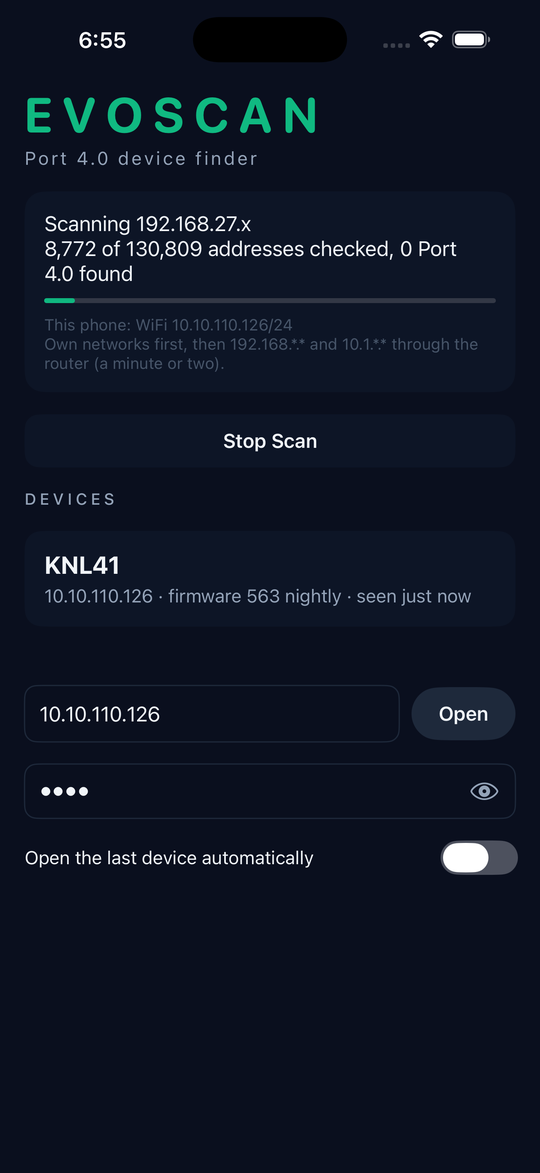
The finder. The app opens on the finder. The card at the top shows the scan as it runs: the block of addresses it is on, how many it has checked out of the total, how many Port 4.0s it has found, and which of your phone's networks it is using (your own networks first, then the hotspot ranges and the common home ranges). Every Port 4.0 found is listed under Devices with its number plate, its address, its firmware version and when it was last seen. Tap the card to open it. At the bottom you can type an address to open a device directly, enter the device password (optional: with the device's login turned on, it lets the app read plates while it scans), and leave "Open the last device automatically" on so the app goes straight to your car next time.
The dashboard. The device's own dashboard, exactly as you know it from a browser: version, plate and WiFi strength, the Gauges and Graphs pages, View Logs, REC and Save Log, the parameter sets and data sources, the live rate counters and the gauges themselves. The app adds only a thin strip above it: a back arrow to the finder, the plate and address, the gauges-only button, and a menu with Reload, Open in Safari, Copy address and Change device. The screen stays on while the dashboard is open, and there is no certificate warning: the app knows the device's own certificate.
Gauges only. The expand button hides the dashboard's header, stats bar and toolbars so the gauges fill the whole screen, which is what you want in a windscreen mount. Tap it again to bring everything back. The app remembers your choice.

Privacy: the app collects no data. Privacy policy.